
So how do 3D printers work? At the most basic level, they build solid objects layer by layer from a digital file — depositing material one thin slice at a time until a complete three-dimensional shape emerges. Unlike traditional printers that put ink on paper, 3D printers extrude melted plastic, cure liquid resin, or fuse powdered material to create physical objects from scratch. Our team has spent years working with these machines, and the technology behind them is both elegant and surprisingly accessible. Whether someone is prototyping a product, printing replacement parts, or exploring a creative hobby, understanding the core mechanics makes the entire process less intimidating.
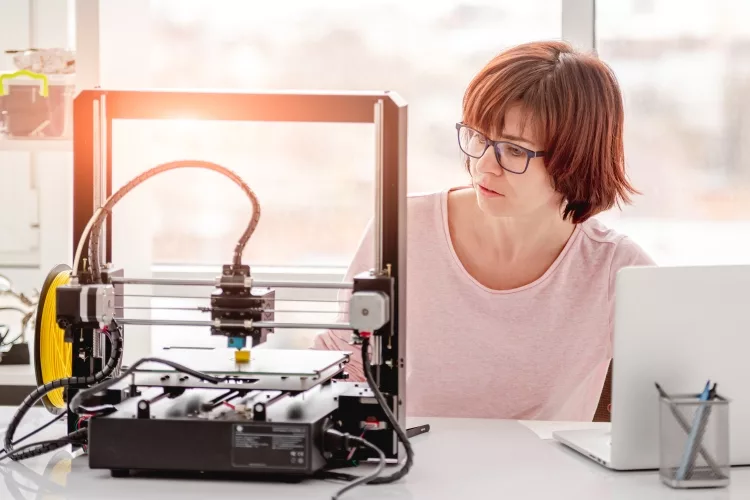
3D printing — formally known as additive manufacturing — has evolved from a niche industrial tool into something anyone can set up on a desk. The most common consumer method, Fused Deposition Modeling (FDM), works by heating a thermoplastic filament and pushing it through a nozzle that traces each layer's outline. But FDM is only one approach. Stereolithography (SLA) uses UV light to harden liquid resin, and Selective Laser Sintering (SLS) fuses powdered material with a laser. Each method has distinct strengths, and we'll break down the full process, the gear involved, and how to get reliable results from day one.
The barrier to entry has dropped dramatically. Machines that once cost tens of thousands of dollars are now available for a few hundred. Anyone interested in the best printers for a home setup will find that 3D printers have become a viable addition alongside traditional models. Let's walk through exactly what makes these machines tick.
Contents
Before diving deeper into how 3D printers work, it helps to understand the key hardware and materials involved. Every 3D printer — regardless of type — shares a set of fundamental components that work together to transform digital designs into physical objects.
The anatomy of a typical FDM 3D printer includes:
For resin printers (SLA/MSLA), the setup differs. Instead of an extruder, there's an LCD screen or laser that selectively cures liquid resin in a vat. The build plate lifts upward as each layer hardens beneath it. Our team finds that anyone running high-performance CPUs for other tasks already has the processing power needed for slicing software, which is a nice bonus.
| Material | Type | Strength | Flexibility | Best Use Case | Difficulty |
|---|---|---|---|---|---|
| PLA | FDM | Moderate | Low | Prototypes, decorative items | Beginner |
| ABS | FDM | High | Low | Functional parts, enclosures | Intermediate |
| PETG | FDM | High | Moderate | Mechanical parts, outdoor use | Intermediate |
| TPU | FDM | Moderate | High | Phone cases, gaskets, grips | Advanced |
| Nylon | FDM | Very High | Moderate | Gears, hinges, tools | Advanced |
| Standard Resin | SLA | Moderate | Low | Detailed models, miniatures | Intermediate |
| Tough Resin | SLA | High | Low | Engineering prototypes | Intermediate |
PLA remains the go-to starting material. It prints at lower temperatures, doesn't warp easily, and produces minimal fumes. Most people graduate to PETG or ABS once they need parts with greater heat resistance or mechanical strength.
The complete 3D printing workflow follows a consistent sequence regardless of printer type. Our team breaks it into three distinct phases: design, slicing, and printing.
Every print starts with a 3D model — a digital file that defines the object's geometry. There are two paths:
The model is typically saved as an STL or 3MF file. These formats describe the object as a mesh of triangles — the more triangles, the smoother the surface. Students exploring tech projects, much like those researching the best printers for college, often start with free downloaded models before learning CAD.
Slicing is where the magic happens. A slicer program (Cura, PrusaSlicer, or Bambu Studio) takes the 3D model and converts it into G-code — a set of precise instructions the printer understands. Key slicer settings include:
The slicer previews each layer before printing begins, allowing adjustments without wasting any material. Our experience shows that spending an extra five minutes optimizing slicer settings prevents hours of failed prints.
Once G-code is loaded (via SD card, USB, or Wi-Fi), the printer executes the build:
A small calibration cube might take 30 minutes. A detailed figurine could run for 12+ hours. Print time depends on size, layer height, speed, and infill density.
Our team always recommends starting with simple prints that teach fundamental skills without requiring advanced settings. The first few successful prints build both confidence and practical knowledge of how the machine behaves.
These quick projects print in under two hours each and expose the most common settings to adjust. Anyone who has set up a multifunction printer already understands the importance of getting baseline calibration right — 3D printers are no different.
After mastering basic prints, intermediate projects teach new skills:
Progression is fast. Most people go from unboxing to printing functional parts within a single weekend.
Understanding how 3D printers work becomes more compelling when considering the breadth of applications. This technology has moved well beyond hobby workshops into critical industries.
Major sectors using additive manufacturing today:
Industrial machines using SLS and DMLS (Direct Metal Laser Sintering) produce parts that meet rigorous engineering specifications. These aren't prototypes — they're production-grade components flying in aircraft and implanted in patients.
At the consumer level, 3D printing has become a practical problem-solving tool:
Our team has seen home users save hundreds of dollars by printing parts that would otherwise require expensive manufacturer replacements or custom machining.
Getting a 3D printer running is straightforward. Getting it to produce consistently excellent results takes deliberate attention to calibration and maintenance.
Most people overlook temperature tuning. Each filament brand — even each color — has an optimal temperature range. A temperature tower test takes 30 minutes and eliminates guesswork. Keeping the workspace clean matters too; our team always recommends having proper dust filtration in any room with electronics and printers.
A well-maintained printer produces better results and lasts longer. Our regular maintenance schedule includes:
Preventative maintenance takes 15 minutes a week. Recovering from a neglected machine takes hours.
Even experienced operators encounter failed prints. The key is diagnosing root causes systematically rather than adjusting random settings. Below are the most frequent issues our team encounters and their proven fixes.
When the first layer won't stick, the print fails immediately. Common causes and solutions:
If adhesion issues appear suddenly on a printer that was working fine, the most likely culprit is a worn or contaminated build surface. Replacing a PEI sheet costs under $15 and often solves persistent problems overnight. Anyone who has dealt with diagnosing hardware that suddenly stops working knows the value of checking the simplest explanations first.
Beyond adhesion, these are the defects that appear most frequently:
Systematic troubleshooting is essential. Changing multiple settings at once makes it impossible to identify what actually fixed the problem. Our team's approach: adjust one variable at a time, print a small test, evaluate, and repeat. For those accustomed to fine-tuning hardware performance, the iterative mindset translates directly to 3D printing.
A capable FDM printer costs between $200 and $500. Add $20–30 for a spool of PLA filament (roughly 1kg, enough for dozens of small prints). Free slicer software like Cura or PrusaSlicer handles the file preparation. Total startup cost for a reliable setup runs around $250–$550, which is comparable to a mid-range traditional printer.
Print time varies enormously depending on the object's size, layer height, and infill. A small calibration cube takes about 30 minutes. A phone stand might take 2–3 hours. Large detailed models can run 12–24 hours or more. Faster layer heights (0.28mm vs. 0.12mm) reduce time significantly but produce more visible layer lines.
Absolutely. PETG and Nylon parts handle significant mechanical loads. The key factors are material choice, infill percentage, and print orientation. Parts printed with 40–60% infill in PETG routinely replace injection-molded components in our team's projects. Industrial 3D printed metal parts are certified for use in aircraft engines and medical implants.


About Malcolm Woods
Malcolm Woods is a technology writer and sustainability advocate with a background in consumer electronics and a long-standing interest in the intersection of technology and environmental impact. He has spent years evaluating tech products — from smartphones and smart home devices to solar-powered accessories — with a focus on real-world performance, longevity, and value. At the site, he covers tech accessory reviews, smart home gear, buying guides, and practical how-to content for everyday technology users.
Go for the FREE Gifts. Or check out for free energy books from our best collection.
Remove Ad block to reveal all the secrets. Once done, hit a button below