
Want to play Xbox One on your laptop screen but not sure if it's even possible? Here's the short answer upfront: yes, you can — but not the way most people assume. Plugging an HDMI cable directly into a laptop usually won't work because almost every laptop HDMI port is output-only. This guide breaks down the three methods that actually work, when each one makes sense, and how to avoid the frustrations most people run into. If you're also shopping for a better laptop to pair with your console, knowing what specs matter will help you choose wisely.
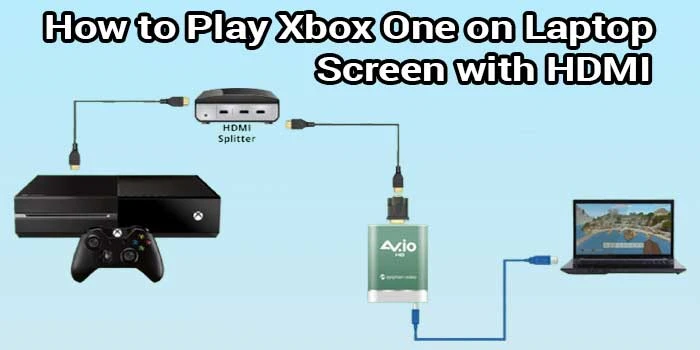
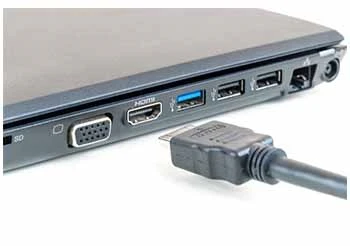
The most common mistake is grabbing an HDMI cable, plugging one end into the Xbox and the other into the laptop, and wondering why the screen stays black. Nearly every laptop's HDMI port sends video out — it doesn't receive video in. Once you understand that distinction, the path forward becomes much clearer.
Three practical methods let you get Xbox One gameplay on a laptop display: the Xbox app over your home network, a USB capture card, or a rare laptop with a true HDMI input port. Each has different hardware requirements, price points, and performance trade-offs — and this guide covers all three.
Contents
Before you try anything, it helps to understand what HDMI (High-Definition Multimedia Interface) actually is. It's a cable standard that carries both audio and video in one connection. Simple enough — but the direction that signal travels is what trips most people up.
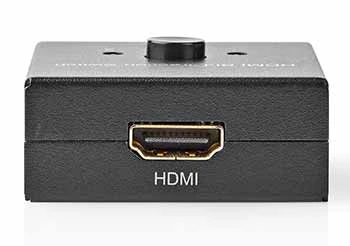
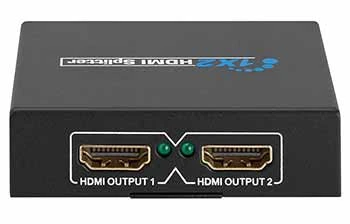
Every HDMI port does one of two things:
To use your laptop screen as an Xbox display through a direct cable connection, you'd need an HDMI input. A small number of gaming laptops include this — older MSI GT-series and select Alienware models — but it's genuinely rare. Don't assume your laptop has one unless the manual explicitly says "HDMI In."
This setup works well in some situations and poorly in others. Knowing which applies to you saves real time and frustration.
Using your laptop as a gaming display makes a lot of sense when:
Keep your laptop plugged into power during Xbox streaming sessions. Heavy network activity drains the battery faster than most people expect, and a sudden shutdown mid-game can interrupt your session or corrupt save progress.
Stick with a dedicated display if:
For anyone building out a serious home gaming or home theater setup, our guide to the best video cards for HTPC builds covers display-driving hardware that goes well beyond what a laptop screen can offer.
Here are the three approaches that actually work to play Xbox One on your laptop. Pick the one that matches your hardware and situation.
This is the most practical method for most people. It streams gameplay over your home network — no extra hardware required.
Pros: Free, no cables, easy to set up. Cons: Requires good Wi-Fi, video is compressed, some latency on busy networks.
A capture card sits between your Xbox and your laptop — the Xbox sends HDMI video to the card, and the card connects to your laptop via USB. Your laptop's software then displays the feed.
Popular options include the Elgato HD60 S+, AVerMedia Live Gamer Portable 2 Plus, and the Razer Ripsaw HD. Prices range from around $50 to $200. If your laptop tends to run warm during long sessions, check out our roundup of top static pressure fans for cooling strategies you can apply to your gaming workspace.
A small number of gaming laptops include a dedicated HDMI input. If yours has one:
This method gives you the lowest latency of the three — comparable to a dedicated gaming monitor. Check your laptop's spec sheet or manual carefully before assuming this port exists.
Getting the connection working is step one. Getting it to actually feel good is step two.
If you're also upgrading your gaming PC alongside your console, our review of the best RAM for Ryzen 2700X builds is worth a read — faster memory makes a measurable difference in overall gaming responsiveness.
For capture card setups, route audio through the capture software's monitoring output rather than your Xbox controller's headphone jack — you'll get cleaner sound and noticeably less latency.
If load times on your console are bothering you as well, our guide to the best SSDs for older gaming consoles covers compatible storage upgrades that can speed things up significantly.
A lot of bad information circulates about this topic. Here's what's actually true.
Myth 1: "You can mirror any Xbox to any laptop just by plugging in an HDMI cable."
False. Standard laptop HDMI ports are output only. You won't see anything because the laptop isn't reading an incoming signal. The Xbox app or a capture card is the workaround.
Myth 2: "Capture cards always cause terrible lag."
Not anymore. Modern cards use passthrough mode — the HDMI signal routes to a TV at zero lag while the card captures it for the laptop screen simultaneously. Budget cards from several years ago had real lag problems, but current mid-range options handle this well.
Myth 3: "The Xbox app delivers the same quality as a TV."
It compresses the video stream. You may notice lower sharpness in fast-motion sequences. For casual gaming it's perfectly fine, but for the best visual quality a direct connection wins.
Myth 4: "You need a powerful laptop to stream Xbox games."
The Xbox does all the game processing. Your laptop only decodes and displays the stream. Even a mid-range laptop handles this without breaking a sweat. If you're curious how GPU specs relate to display performance, our guide on the best vertical GPU mount options goes into graphics card setups worth understanding.
Myth 5: "Any HDMI cable works the same."
For most setups, yes — HDMI 1.4 handles 1080p at 60fps fine, which covers most Xbox One output. But if you're running 4K at 60fps through a capture card, you'll need HDMI 2.0 or newer. Worth checking before you buy.
Xbox app can't find the console
Black screen when using a capture card
Audio playing but no video visible
Severe lag in the Xbox app
| Feature | Xbox App (Wi-Fi) | Capture Card (USB) | HDMI Input Port |
|---|---|---|---|
| Extra hardware needed | None | Capture card ($50–$200) | None (if port exists) |
| Cable required | No | HDMI + USB | HDMI only |
| Input latency | Moderate (50–100ms) | Low–Moderate (20–60ms) | Very low (<10ms) |
| Video quality | Compressed (good) | Near-lossless (great) | Lossless (best) |
| Works without Wi-Fi | No | Yes | Yes |
| Laptop compatibility | Windows 10/11 required | Most laptops via USB | Rare — select models only |
| Best for | Casual gaming, travel | Consistent reliable quality | Low-latency serious gaming |
You can use the Xbox app on any Windows 10 or 11 laptop, provided both devices are on the same home network. For laptops running macOS or Linux, the official Xbox app isn't available, though a few third-party streaming tools exist as alternatives.
Only if you want a direct cable-to-screen connection. If you use the Xbox app over Wi-Fi or route through a USB capture card, you don't need an HDMI input port at all — those methods completely bypass it.
Modern capture cards add roughly 20 to 60 milliseconds of latency. For most games that's barely perceptible. Many cards also include an HDMI passthrough port, which routes the signal to a TV at zero lag while the laptop shows a slightly delayed stream — best of both worlds.
The Xbox app compresses the video signal during transmission. Try raising the stream quality in the Xbox app settings. A weak or congested Wi-Fi connection also causes blurry, stuttery video — switching to 5GHz Wi-Fi or a wired connection usually clears it up fast.
Yes — but only with a USB capture card or a laptop that has an actual HDMI input port. Both of those use physical cable connections and require no network at all. The Xbox app is the only method that depends on Wi-Fi.
It depends on the laptop model and how long you play. Network streaming loads the CPU and wireless hardware, which generates heat. Keep the vents unobstructed, use a hard flat surface or a cooling pad, and always keep the laptop plugged into power to prevent thermal throttling under load.
Your TV isn't the only screen that can run your Xbox — once you know which method fits your setup, your laptop becomes a surprisingly capable gaming display.


About Malcolm Woods
Malcolm Woods is a technology writer and sustainability advocate with a background in consumer electronics and a long-standing interest in the intersection of technology and environmental impact. He has spent years evaluating tech products — from smartphones and smart home devices to solar-powered accessories — with a focus on real-world performance, longevity, and value. At the site, he covers tech accessory reviews, smart home gear, buying guides, and practical how-to content for everyday technology users.
Go for the FREE Gifts. Or check out for free energy books from our best collection.
Remove Ad block to reveal all the secrets. Once done, hit a button below