
You just unboxed a gaming headset, plug the single 3.5mm jack into your laptop, and the mic works immediately — no fuss, no extra hardware. Then you try the exact same headset on your desktop and the microphone goes completely silent. You're staring at two color-coded ports, wondering if you're stuck buying a splitter. You're not. Using a single jack headset without splitter on your PC is straightforward once you know your options — and on many machines, the answer costs you nothing. Whether you use a laptop or a full desktop tower, this guide covers every method that actually works.
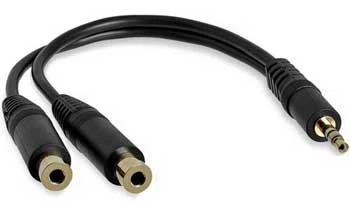
The key is understanding the connector. Most gaming and multimedia headsets ship with a TRRS plug — a standard 3.5mm jack with four metal bands instead of three. Those four bands carry left audio, right audio, ground, and microphone signal all through a single cable. A regular headphone plug is TRS — three bands, stereo audio only, no mic channel. According to Wikipedia's reference on phone audio connectors, TRRS has become the global standard for headsets that combine playback and recording in one plug. Knowing which connector your headset uses tells you immediately which approach applies to your situation.
Before you try anything, spend 30 seconds checking your PC's audio ports. Laptops made in the last several years almost universally include a single combo audio jack that accepts TRRS headsets natively — one port handles both audio output and mic input at once. Desktops are a different story. They typically ship with two separate ports: a lime-green headphone jack and a pink microphone jack. These ports are TRS-only and do not share the mic channel when you plug in a TRRS headset. If you've run into similar mic routing challenges before, our guide on how to use an iPhone mic on PC walks through the same underlying Windows audio logic.
Contents
Here's the honest picture: using a single jack headset without splitter on your PC can cost you zero dollars, or up to $20 if your desktop hardware requires it. Your existing ports determine which end of that range you land on. Start with what you have, then add hardware only if you need to.
If you're on a modern laptop, there's a good chance you're done before you even start. Plug your TRRS headset in and test it right away. Follow these steps to confirm everything is working:
If the mic doesn't show up, the most common cause is a TRS plug rather than TRRS — three bands instead of four means there's no mic channel to detect. Check the plug under good lighting and count the bands.
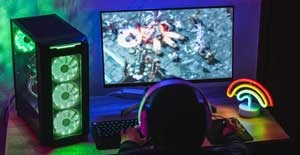
For desktops with separate green and pink ports, a USB audio adapter is the cleanest solution. These small dongles add a combo 3.5mm TRRS jack to any USB port and work immediately without drivers on Windows, macOS, and Linux. Prices run $5 to $20 depending on the brand.
What to look for when buying one:
Pro tip: A $7–$10 USB audio adapter delivers voice quality indistinguishable from a mid-range sound card for calls and gaming chat — save the premium hardware budget for your display or CPU.
If your headset supports Bluetooth, a USB Bluetooth dongle — priced at $8 to $15 — eliminates the port compatibility issue entirely. No 3.5mm ports needed at all. If your PC already has Bluetooth built in, the cost drops to zero and the setup takes under two minutes. The pairing logic is universal: the same process you'd use for any wireless headset. Our guide on connecting a Bluetooth headset to PS3 covers pairing fundamentals that apply to PC setups as well.
| Method | Cost | Works On | Audio Quality | Plug-and-Play |
|---|---|---|---|---|
| Laptop combo jack (native) | Free | Most modern laptops | Good | Yes |
| USB audio adapter | $5–$20 | Desktop & laptop | Good | Yes |
| Bluetooth USB dongle | $8–$15 | Desktop & laptop | Good–Excellent | Yes |
| 3.5mm splitter | $5–$12 | Desktop & laptop | Good | Yes |
| Dedicated PCIe sound card | $25–$100+ | Desktop only | Excellent | No (driver install) |

Not every use case demands high-end audio hardware. In the majority of everyday scenarios, a single jack headset connected without a splitter is the most practical and capable setup you can run. Here's where it genuinely excels.
Voice chat in multiplayer games is the most common reason people choose a combo headset. For this use case, the setup hits every requirement without compromise:
If you're building or upgrading a gaming PC alongside your audio setup, our Best CPUs for Gaming guide covers the processor choices that pair well with a focused peripherals setup. For the Windows driver side of headset mic configuration, our guide on how to use a headset mic on PC with one jack covers the audio settings in detail that this guide summarizes.
Teams, Zoom, and Google Meet all perform significantly better with a dedicated headset mic compared to a built-in laptop microphone. The single jack approach works particularly well for remote work environments:
Warning: If your mic is not being detected after plugging in on Windows, check Sound settings immediately — Windows sometimes misroutes TRRS devices to the wrong input category on first connection. Set your input device manually if needed.
Every audio setup involves trade-offs. Going splitter-free with a single TRRS headset is no different. Here's an honest accounting of what you're gaining and what you're giving up — so you can make the call that fits your actual workflow.
For the vast majority of users — remote workers, gamers, students, casual listeners — the gains outweigh the losses by a wide margin. The ceiling only becomes a real constraint if you're doing professional audio production or high-end content creation.
The splitter question isn't purely technical — it's also about your specific workflow and the hardware you're already working with. Here's a clear framework for making the decision.

One final troubleshooting note: if you've confirmed your headset is TRRS and your PC still refuses to recognize the microphone, open Windows Sound settings and verify the input device is not muted or set to zero volume. Windows also occasionally hides the mic input under a "Disabled devices" category — right-click inside the recording devices panel and enable Show Disabled Devices to check. This single step resolves the majority of cases where a properly connected headset appears non-functional. For similar hardware troubleshooting logic applied to display issues, see our guide on how to fix a pink screen on a laptop or computer. And if you want to push your audio setup further — or understand the digital audio connection alternatives — our SPDIF vs Toslink breakdown explains the difference between optical audio formats that matter for advanced home audio setups.
Your headset doesn't need a splitter — it needs the right port, and now you know exactly how to find it.


About Malcolm Woods
Malcolm Woods is a technology writer and sustainability advocate with a background in consumer electronics and a long-standing interest in the intersection of technology and environmental impact. He has spent years evaluating tech products — from smartphones and smart home devices to solar-powered accessories — with a focus on real-world performance, longevity, and value. At the site, he covers tech accessory reviews, smart home gear, buying guides, and practical how-to content for everyday technology users.
Go for the FREE Gifts. Or check out for free energy books from our best collection.
Remove Ad block to reveal all the secrets. Once done, hit a button below