
Ever plugged in your headset and wondered why Windows picks up your speakers perfectly but shows no mic signal at all? Here's the answer: most gaming and multimedia headsets use a single combo plug — and without a headset mic single jack adapter, your PC simply doesn't know how to split the audio and microphone channels. Whether you're gaming on a laptop or working at a desktop with two separate audio ports, this small splitter cable is the difference between a silent mic and clear voice chat. This guide covers setup, software configuration, troubleshooting, and the mistakes that waste most people's time.

Most gaming headsets use a TRRS connector (Tip-Ring-Ring-Sleeve) — a single 3.5mm plug that carries stereo audio and microphone signals simultaneously. Your PC might have two separate 3.5mm ports (green for headphones, pink for microphone) or one combo port. Each scenario needs a different approach, and knowing which you have is step one before touching any settings.
The good news is this fix costs almost nothing and takes under ten minutes once you know what to do. You don't need a new headset or an expensive external sound card. A quality splitter adapter — typically $5 to $20 — handles everything. Here's exactly how.
Contents
A headset mic single jack adapter — also called a TRRS splitter or combo audio splitter — takes one TRRS plug and breaks it into two separate TRS (Tip-Ring-Sleeve) connectors: one for audio output and one for audio input. Without it, your PC sees only one function from the combo plug, almost always audio playback, because it defaults to the standard stereo headphone format and ignores the microphone band entirely.
Look at the plug at the end of your headset cable. Count the black rings (called bands) on the metal connector tip:
Most gaming headsets, phone earbuds with a mic, and communication headsets use TRRS. If your headset has three bands, you have a combo plug and you need the splitter adapter to use the microphone on a desktop PC with separate green and pink ports. If your PC has a single combo port — common on most laptops and many newer desktops — you can plug the TRRS connector straight in and skip the adapter entirely. The adapter only becomes necessary when you have two separate ports.
Understanding how signal routing works at a hardware level also helps when you're working with other audio equipment. Our guide on the best amplifiers for HD650 headphones walks through how audio signal paths work in more complex setups, which gives you a useful mental model for troubleshooting any audio chain.
Using a headset mic single jack adapter is a practical solution, but it comes with real trade-offs worth knowing before you buy.
| Factor | Advantage | Drawback |
|---|---|---|
| Cost | Adapters cost $5–$20, far cheaper than a replacement headset | Very cheap options introduce audio noise and channel errors |
| Setup | Plug-and-play in most cases — no driver installation required | Still requires manual audio input selection in your OS settings |
| Compatibility | Works with virtually any TRRS headset on the market | Does not work with older TRS-only headsets that have no built-in mic |
| Audio Quality | Good adapters preserve original headset audio quality completely | Low-quality splitters can degrade signal and add background hiss |
| Portability | Small enough to fit in any laptop bag or shirt pocket | Easy to lose or leave behind when traveling |
| Wiring Standard | Solves CTIA vs OMTP wiring mismatches between headsets and ports | You must confirm the adapter matches your headset's wiring standard |
For most everyday users — voice calls, gaming chat, video meetings — the advantages clearly outweigh the drawbacks. The key is buying the right adapter from a reputable brand, not the first result you see at the lowest price point.
Pro tip: Always buy a splitter with clearly labeled ports using a headphone icon and a mic icon — unlabeled adapters often have the channels swapped, which creates exactly the problem you're trying to solve.
Most headset mic problems on PC aren't hardware failures — they're setup errors that take five seconds to create and can take an hour to diagnose if you don't know where to look. Here are the mistakes that waste the most time.
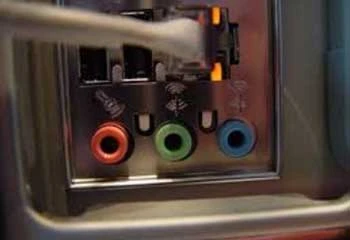
This is the most common error, and it sounds too obvious to mention — but it trips up a huge number of people. When your PC has two separate ports and you're using a splitter adapter, the microphone side of the adapter goes into the pink port and the headphone side goes into the green port. Getting them swapped means your mic picks up static and your headphones produce silence. Swapping those two connections is always the first thing to check.
The situation changes if your PC has only one combo port. In that case, plug the full TRRS connector directly into that single port — no adapter needed. The adapter exists specifically to bridge a TRRS headset to a system that expects separate TRS connectors. Using it on a combo port adds nothing and can cause signal problems.
Plugging in the adapter is only half the job. Both Windows and Mac need you to manually tell them which connected device is the active microphone. If you skip this step, your system keeps using whatever microphone it was already using — usually the built-in laptop mic or the last device it remembered from a previous session.
This is the reason people often assume the adapter is broken. The adapter is working fine — the operating system just hasn't been directed to the correct input source yet. Apps like Discord, Zoom, and Microsoft Teams add another layer: they have their own independent input device settings that override system defaults. You need to update both the OS-level setting and the app-level setting to get consistent results.
You plugged everything in correctly, you set the default input device — and the mic still shows no signal. Don't reach for your wallet yet. Work through this systematically before buying anything new.

Follow these steps in order on Windows 10 or Windows 11:
If the microphone appears in the list but shows no activity at all, navigate to Privacy & Security → Microphone and confirm that microphone access is enabled for desktop apps. Windows occasionally resets this permission after major updates, and it blocks all mic input at the OS level without any obvious error message.
If the device doesn't appear in the list at all, unplug the adapter, wait ten seconds, and plug back in. Windows sometimes fails to register a new audio device on hot-plug, and a fresh reconnect triggers the detection process again. For a similar walkthrough on getting audio working through an audio device on a Dell machine, our guide on connecting AirPods to a Dell laptop shows how to navigate the same Sound settings panels.
Warning: If Windows shows your mic in Device Manager but not in Sound settings, right-click inside the Sound settings input list and select "Show disabled devices" — Windows sometimes auto-disables newly detected audio inputs.

On a Mac, the steps are just as direct:
MacBook combo ports (present on most MacBook models) handle TRRS natively. If your MacBook detects the headset but not the mic, try using the adapter anyway — some headsets use OMTP wiring (which swaps the mic and ground pins) while Mac expects CTIA standard. The adapter can correct this routing mismatch even on a single-port machine.
If you're running memory-intensive applications on the same machine — video editing, multiple browser tabs, streaming software — system resource pressure can occasionally affect audio processing stability. Our RAM guide for Ryzen builds explains how insufficient memory affects overall system performance, including peripheral responsiveness.

Bad advice about headset adapters is everywhere online. People buy the wrong products, return perfectly working hardware, and spend money they don't need to spend — all because of a few persistent myths. Here's the truth on the most damaging ones.
This is false, and it causes more frustration than almost any other mistake on this list. Most 3.5mm splitters sold online are audio output splitters — they're designed to share one headphone jack between two pairs of headphones. They have two headphone connectors and zero microphone support. If you buy one of these by accident, your mic will never work, regardless of how many settings you adjust, because the adapter physically doesn't route the microphone signal.
What you specifically need is a TRRS to dual TRS splitter — sometimes labeled "headset splitter," "headphone and mic splitter," or "combo audio adapter." Look for these features before buying:
Reliable options come from Ugreen, StarTech, and Cable Matters. These brands consistently get the TRRS signal routing correct. A no-name splitter at the lowest price point is a gamble that usually costs you more time than money.
You don't. An external USB sound card is a legitimate upgrade — it gives you better audio quality, built-in noise suppression, gain controls, and often a cleaner signal path than your motherboard's onboard audio. But it is not required to make your headset mic work. A quality headset mic single jack adapter from a reputable brand handles the job reliably for everyday voice calls, gaming, and video meetings.
External sound cards make clear sense if you're recording podcasts or streaming where audio quality directly affects your audience's experience. For standard PC use, the adapter is sufficient. The same logic applies to multi-device setups — you don't always need the premium solution. Our article on using an Xbox One on a laptop screen via HDMI makes a similar point about signal routing: the simpler solution usually works when you understand what the hardware actually needs.
A headset mic single jack adapter is a small, simple component — but it's also the weakest point in your audio chain. Physical stress, oxidation, and dirt accumulate on connectors over time and cause exactly the intermittent problems that are hardest to diagnose. A few habits extend the life of your adapter significantly.
Oxidation (the thin tarnish layer that builds up on metal contacts) and dust are the main enemies. Here's how to address both:
These same habits apply to your headset's main cable. Headsets stored tightly coiled under pressure develop internal wire breaks over time. The symptom is audio that crackles or cuts out when you move your head — not a software problem, a physical one.
Adapters are inexpensive enough that replacing a failing one is always the better move over spending hours troubleshooting it. Watch for these specific signs:
At $5–$15 for a quality replacement, there's no value in diagnosing a physically damaged adapter when a new one arrives in two days. For context on keeping your entire PC audio and hardware stack running reliably, our guide on the best static pressure fans covers airflow management — because proper component cooling keeps your system stable at the temperatures where audio processing performs consistently.
The right adapter costs less than a coffee — the only expensive mistake is not knowing which one to buy.


About Malcolm Woods
Malcolm Woods is a technology writer and sustainability advocate with a background in consumer electronics and a long-standing interest in the intersection of technology and environmental impact. He has spent years evaluating tech products — from smartphones and smart home devices to solar-powered accessories — with a focus on real-world performance, longevity, and value. At the site, he covers tech accessory reviews, smart home gear, buying guides, and practical how-to content for everyday technology users.
Go for the FREE Gifts. Or check out for free energy books from our best collection.
Remove Ad block to reveal all the secrets. Once done, hit a button below