
Picture this: you finally sit down for a late-night gaming session, Bluetooth headset in hand, and the PS3's pairing menu just sits there — unresponsive, unhelpful. If that sounds familiar, you already know how unnecessarily confusing this process can seem. Learning how to connect bluetooth headset ps3 correctly saves you that frustration, and once you've done it once, the whole thing takes under five minutes. If you're building out a broader tech setup at home, our smart home section covers accessories and devices that pair well with a gaming-focused living room.
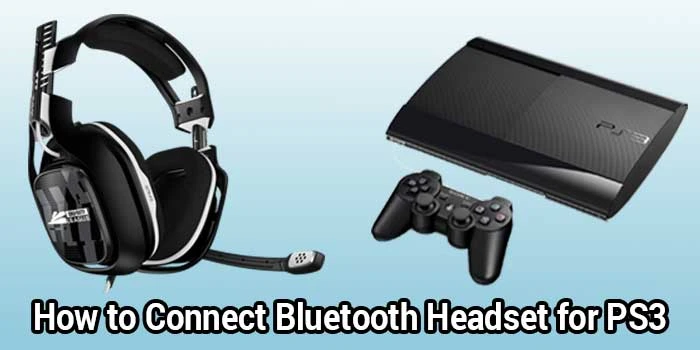
The PS3 has native Bluetooth built in, which means no adapters, no dongles, and no special software. That said, Sony's pairing interface was designed primarily around its own accessories, so third-party headsets sometimes require a bit more patience. The steps are consistent regardless of brand — you just need to follow them in the right order.
One thing worth knowing before you dive in: the PS3 treats Bluetooth pairing and audio output as two separate configurations. Pairing your headset gets the connection established, but routing actual game audio or voice chat through it requires a separate trip into system settings. Keep that in mind — it's where most people get stuck.
Contents
Before the PS3 can detect your headset, the headset itself needs to be actively discoverable. This is called pairing mode. For most headsets, you enter it by holding the power button for five to eight seconds until an LED starts flashing rapidly or alternates between two colors. The exact method varies by manufacturer, so if you're unsure, check the manual or the manufacturer's website. The headset must be in pairing mode during the PS3 scan — simply powering it on is not enough, and an already-connected headset won't appear as available.
With your headset broadcasting, pick up your PS3 controller and navigate the XMB home menu to Settings → Accessory Settings → Manage Bluetooth Devices. Select "Register New Device" and the console will begin scanning for nearby Bluetooth peripherals. Your headset should appear within a few seconds. If it doesn't show up, move the headset closer to the console — within three feet is ideal — and try the scan again.
Tip: If your headset appears in the scan but immediately disappears, toggle the headset off and back on while staying in the PS3 Bluetooth menu — a fresh discovery cycle often resolves intermittent visibility issues.
Select your headset from the list. The PS3 may prompt you for a passkey. For the vast majority of compatible headsets, this is "0000" — four zeros. Enter it and confirm. The console will register the device and list it under your saved Bluetooth accessories. That's the pairing done. From here, you'll move into audio configuration, which is a separate but equally important process.

Sony's own PlayStation Bluetooth headsets — including the original mono headset and the Pulse series — are the most reliable choice for full compatibility. They pair quickly, require no passkey, and support both voice chat and game audio output without extra configuration. If you want a truly plug-and-play experience and don't want to troubleshoot, a Sony-branded headset is the low-friction option.
Many popular Bluetooth headsets from Jabra, Plantronics, Logitech, and similar brands work with the PS3, though results vary. Voice chat functionality is almost universally supported across third-party devices. Full audio output — meaning you hear game sound through the headset — is less consistent and depends on the specific model. Before buying any headset with PS3 use in mind, search for user reviews that specifically mention PS3 compatibility rather than relying on general ratings alone.
If you're also fine-tuning audio quality for other headphones in your setup, our guide covering the best amp for HD650 headphones is worth a read — it offers useful context on how amplification and audio routing choices affect overall sound quality.
A depleted battery is one of the most common causes of mid-session dropouts. Most headsets signal low battery through an audio tone or a changing LED pattern, but these cues are easy to miss when you're focused on a game. Build a habit of charging your headset before long sessions rather than after them. Storing it at a partial charge — somewhere between 40 and 80 percent — is also better for long-term battery longevity than draining it completely before each charge.
Your PS3's system software directly affects how well it handles Bluetooth devices. Sony has issued multiple firmware updates over the console's lifetime that improved Bluetooth stability and broadened headset compatibility. Keeping your PS3 on the latest firmware is one of the simplest things you can do to avoid pairing issues that are already fixed upstream. Check for updates through Settings → System Update → Update via Internet.

Once pairing is complete, you can set your headset as the audio output device for game sound. Navigate to Settings → Sound Settings → Audio Output Settings. If your headset supports audio output, it will appear as an available option here. Select it and save the setting. Not every Bluetooth headset supports this — some are mic-only peripherals for the PS3 — but if yours does, this is where you enable it.
For voice chat during online multiplayer, the relevant menu is different. Go to Settings → Accessory Settings → Audio Device Settings. Here you'll assign your Bluetooth headset as the input and output device for microphone use. You can also adjust sensitivity and volume levels for your mic. Test it in a private party chat before joining a public lobby — catching audio problems there is far less disruptive than discovering them mid-match.
If you enjoy playing on multiple platforms and screens, our walkthrough on how to play Xbox One on a laptop screen with HDMI covers a similar multi-step configuration process for connecting consoles to alternative displays.
The PS3 also supports USB headsets, which offer a different set of trade-offs compared to Bluetooth. Understanding the differences helps you make a more informed decision about which type fits your setup. Bluetooth is the wireless standard underpinning most modern audio accessories, but USB can actually offer advantages in some situations — particularly around reliability and audio consistency.
| Feature | Bluetooth Headset | USB Headset |
|---|---|---|
| Connection Type | Wireless | Wired via USB port |
| Setup Complexity | Moderate — pairing required | Low — plug and play |
| Voice Chat Support | Yes (nearly universal) | Yes |
| Game Audio Output | Varies by headset model | Usually fully supported |
| Battery Required | Yes | No |
| Range | Up to 30 feet | Limited by cable length |
| Interference Risk | Moderate (2.4GHz band) | None |
Bluetooth gives you freedom of movement, which is genuinely useful if you sit far from your TV. USB headsets, on the other hand, tend to deliver more consistent audio quality, require no charging, and connect without any configuration steps. If you sit close to your screen and don't mind a cable, USB may actually be the more practical option.
This is the most frequent error by far. Just turning the headset on is not the same as making it discoverable. If your headset has already paired with another device — your phone, for instance — it will attempt to reconnect to that device automatically rather than entering pairing mode. Disconnect the headset from other paired devices first, then hold the pairing button until the LED behavior changes. Only then should you start the scan on your PS3.
Most PS3-compatible headsets use "0000" as their passkey. Some use "1234." If the first doesn't work, try the second, then consult your device documentation. Entering the wrong passkey won't lock the headset out permanently, but it will cancel the pairing attempt and require you to restart the scan. Keep both common codes handy before you begin, and you'll save yourself unnecessary repetition.
Warning: If the PS3 shows your headset as "registered" but audio or mic still doesn't work, delete the device from your Bluetooth list entirely and re-pair from scratch — stale registration entries can cause silent connection failures that re-registering won't fix.
Pairing establishes the connection. Audio configuration tells the PS3 what to do with it. These are genuinely separate steps, and skipping the second one is the reason many people pair their headset successfully but still can't hear anything or be heard. After pairing, always follow up with a visit to both Audio Device Settings (for mic/voice) and Audio Output Settings (for game sound). Treating them as one step is where the confusion usually lives.
If you've also run into audio configuration challenges on a computer, our article on using a headset mic on PC with one audio jack walks through a similarly counterintuitive multi-step process that might feel familiar.
Most standard Bluetooth headsets can pair with a PS3 for voice chat, but not all support full game audio output. Sony-branded headsets offer the most complete compatibility, while third-party devices vary by model. Always check user reviews specifically mentioning PS3 use before purchasing a headset for this purpose.
The most common reason is that the headset isn't in active pairing mode. Simply powering the headset on isn't enough — you need to hold the pairing button until the LED flashes in the discoverable pattern. Also make sure the headset isn't already connected to another device, which prevents it from broadcasting as available.
Yes, but it depends on the headset and requires a separate configuration step. After pairing, go to Settings → Sound Settings → Audio Output Settings and select your Bluetooth headset as the output device. Not every Bluetooth headset supports this on the PS3 — some only function as microphones — so check your specific model's compatibility.
No. The PS3 stores multiple Bluetooth devices in its registry, so adding a new headset won't automatically remove a previously paired one. You can manage your saved devices through Settings → Accessory Settings → Manage Bluetooth Devices, where you can view and delete individual entries as needed.
Getting your Bluetooth headset connected to a PS3 is straightforward once you understand the two-part process — pairing first, then audio configuration. Go through the steps in order, make sure your headset is genuinely in pairing mode before scanning, and don't skip the audio settings menu after the connection is established. If you're ready to take the next step, pull out your headset right now, navigate to Manage Bluetooth Devices on your PS3, and give it a try — most people have it working within a few minutes once they know what to expect.


About Malcolm Woods
Malcolm Woods is a technology writer and sustainability advocate with a background in consumer electronics and a long-standing interest in the intersection of technology and environmental impact. He has spent years evaluating tech products — from smartphones and smart home devices to solar-powered accessories — with a focus on real-world performance, longevity, and value. At the site, he covers tech accessory reviews, smart home gear, buying guides, and practical how-to content for everyday technology users.
Go for the FREE Gifts. Or check out for free energy books from our best collection.
Remove Ad block to reveal all the secrets. Once done, hit a button below